Install the mealissa-llm-agent
Get your local Ollama models onto the Mealissa network — encrypted, globally accessible, zero data stored.
Before you begin
This guide takes you from a fresh machine to a registered Mealissa node. The whole process takes only a few minutes.
- A supported OS — Windows 10 / 11 (x64) or Ubuntu 20.04+ / Debian / RHEL (x64).
- Ollama installed and running.
- A valid Mealissa license key. Get one here →
Step-by-step
Install Ollama
Download and install Ollama for your platform. Ollama runs your models locally and serves them on localhost:11434. It must be running before you start the agent.
Pull a model
Pull any model from the Ollama library — Llama, Qwen, Gemma, Mistral, Phi, DeepSeek, and more:
ollama pull qwen2.5:4bConfirm it's installed and Ollama is serving it:
ollama listGet your license key
A valid license key is required to run the agent — it asks for the key the first time it starts (step 7), so have it at hand. Create an account and get your key from the Mealissa cloud console:
mealissa.com/cloud → · See the licensing plans.
Download the agent
Grab the package for your platform from the downloads page. Each archive is around 520 KB.
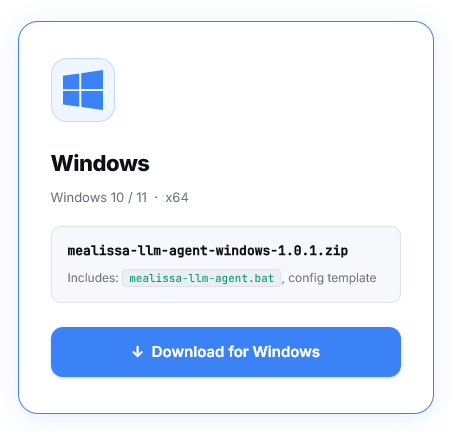
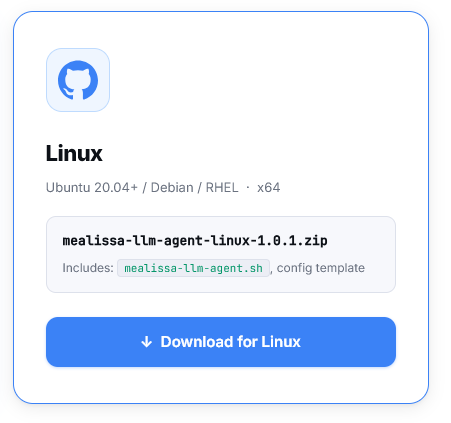
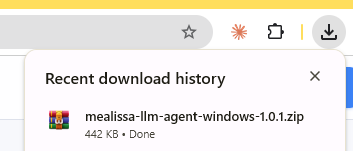
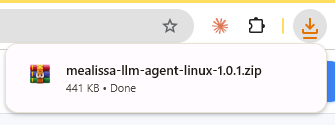
Your browser will save the .zip to your Downloads folder.
Extract the archive
Unzip the downloaded package. Inside you'll find the agent launcher and a build folder. (There's also a bundled Java helper — you won't run it yourself; the agent calls it automatically only if needed.)
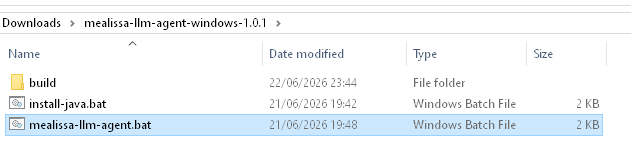
mealissa-llm-agent.bat. The Linux package is analogous.Run the agent
Launch the agent from the extracted folder. Make sure Ollama is running first.
mealissa-llm-agent.batchmod +x mealissa-llm-agent.sh
./mealissa-llm-agent.shNo need to set up Java yourself: on launch the agent checks for a compatible Java runtime (Java 11+) and installs one automatically only if it isn't already present. What to expect if that happens:
- Windows — you'll see an administrator (UAC) prompt, the installer downloads the Java runtime (~110 MB), and you'll then be asked to restart your computer. After restarting, run
mealissa-llm-agent.batagain. - Linux — the launcher asks for your
sudopassword and installs OpenJDK via your distribution's package manager (apt, dnf, or yum).
Answer the first-run prompts
On first launch the agent asks a few questions. Every prompt except the license key has a sensible default — press Enter to accept it. This is where you paste the license key from step 3:
╔═══════════════════════════════════════════╗
║  Mealissa Distributed LLM Local Agent     ║
╚═══════════════════════════════════════════╝

  License  []: Enter your license key: <your-license-key>
  Node ID  [4f3a1c2d-...]:
  Group    [9b2e0f1a-...]: lab
  Default  [N]: Is this the default server for the group? [y/N]: y
  Querying Ollama at http://localhost:11434... found 1 model(s).
  Available models:
    1. qwen2.5:4b  (4.0B params)
  Model    [1]:

  License  : ***XXXX
  Node ID  : 4f3a1c2d-...
  Group    : lab
  Default  : yes
  Model    : qwen2.5:4b  (4.0B params)
  Local    : 192.168.1.10:11434
Server : wss://mealissa.com/cloud/ws/node- License — required. The agent encrypts it and saves it locally, so on later runs the prompt shows
License [***1234]:and pressing Enter reuses it. - Node ID — a unique identifier for this machine; the generated one is fine.
- Group — nodes in the same group can be queried together; the agent remembers your last group.
- Default — whether this node answers group queries by default.
- Model — pick a number from the models the agent detected in Ollama.
~/.mealissa/agent.json, with the license key encrypted (AES-256-GCM). Delete that file to be asked everything again from scratch.
Verify your node
The agent connects to the Mealissa cloud over an encrypted channel and registers your node. Success looks like this in the console:
Connecting... (type 'help' for commands)
[connected] Registering node...
[registered] node_id=4f3a1c2d-...  public=203.0.113.5:54321
The prompt stays interactive — type status to see connection info, list to see other nodes in your group, or quit to disconnect. If the connection drops, the agent reconnects automatically.
Then open the cloud dashboard — your node and its model should appear online. For end-to-end proof, query your model from anywhere with the Anthropic-compatible API:
curl -s -X POST https://mealissa.com/cloud/g/<your-group>/v1/messages \
  -H "Content-Type: application/json" \
  -H "Authorization: Bearer <your-license-key>" \
  -d '{"model":"qwen2.5:4b","messages":[{"role":"user","content":"Hello!"}]}'
Your local LLM is now globally accessible, encrypted in transit, with zero data stored.
CLI options
Prefer a scripted or non-interactive start? Every prompt can be supplied as a flag:
--license <key>— license key (skips the license prompt).--group <name>— group to join.--model <name>— model to serve (skips the model menu).--default— mark this node as the group's default server.--port <n>— local Ollama port (default11434).--url <ws-url>— cloud server URL; repeat the flag to connect to several servers at once. Only securewss://URLs are accepted.
java -jar build/mealissa-llm-agent.jar --license <key> --group lab --defaultTroubleshooting
- “Querying Ollama… unreachable.” — Ollama isn't running, or isn't on port 11434. Start Ollama, or pass
--portif you run it on another port. - “registration rejected: could not retrieve param_count” — the cloud needs the model's parameter count and Ollama didn't report it. Update Ollama and re-pull the model, then restart the agent.
- “license invalid or expired” — the server closed the connection. Check your key and plan status in the cloud console.
- Start fresh — delete
~/.mealissa/agent.jsonto clear the saved license key and group and be re-prompted on the next launch.
More symptoms and API errors are covered in the full Troubleshooting guide.
Next steps
- Connect your apps — point the Anthropic Claude SDK at your Mealissa endpoint (
https://mealissa.com/cloud/g/<group>/v1/messages). See Compatible SDKs. - Explore models — anything in the Ollama library works.
- Need help? Check the FAQ or contact us.